
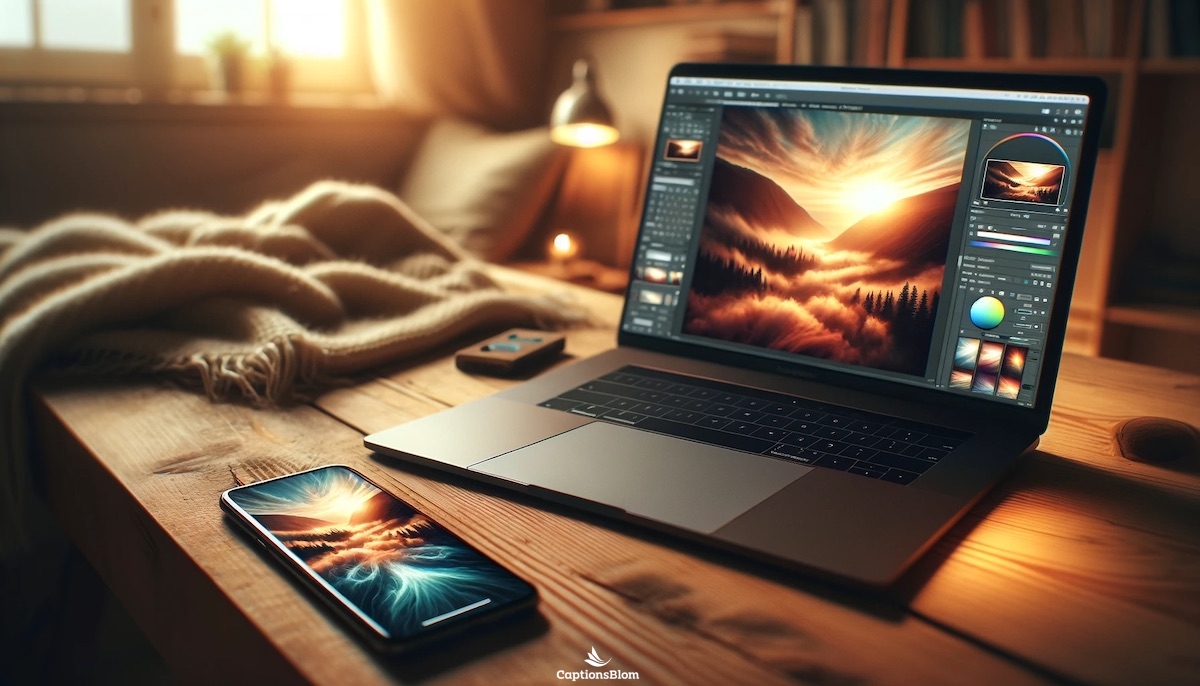
If you have ever stared at the same default wallpaper on your phone or laptop for months and thought “I should really change that,” you are not alone. Most people skip personalizing their screens simply because they assume it requires design skills, expensive software, or a lot of time. The good news is that modern background creation tools have made the whole process approachable for anyone, whether you are on your lunch break using your phone or sitting at your desk with five minutes to spare. With the right platform and a few simple tips, you can have a one-of-a-kind screensaver or desktop background ready to download in minutes.
What to Look for in a Background Creation Platform
Not all online design tools are built the same way, and when you are looking specifically for something to create desktop wallpapers or mobile screensavers, a few qualities matter more than others. The most important thing for most people is ease of use. You should not need to read a manual or watch an hour of tutorials just to change your background. Look for tools that offer drag-and-drop editing, a wide selection of templates sized correctly for desktop and mobile screens, and the ability to work from any device, whether you are on a computer, tablet, or smartphone.
Beyond simplicity, consider whether the platform offers access to quality images and fonts without requiring you to upload everything yourself. A good background creator should give you a library of stock photos, preset color palettes, and typography options so you can build something polished without hunting down assets elsewhere. One-click editing features, like filters, resize tools, and AI-powered suggestions, make the whole experience faster and more enjoyable.
Finally, think about output and sharing. Can you download your finished background directly to your device? Does it export at the correct resolution for your screen? These small details can be the difference between a background that looks sharp and one that ends up blurry and pixelated.
8 Tips for Creating Backgrounds You Will Actually Want to Use
1. Start With a Template Sized for Your Device
One of the most common mistakes people make when creating their own backgrounds is starting with a canvas that is the wrong size. A desktop background and a mobile screensaver have very different dimensions, and using the wrong one means your design will be cropped, stretched, or blurry. Always begin with a template that is pre-sized for the device you are designing for. Most platforms offer specific categories for desktop wallpapers and mobile screensavers so you do not have to figure out pixel dimensions on your own.
Starting with a correctly sized template also saves you a significant amount of time. Instead of building something from scratch, you can pick a layout that already looks good and simply swap out the colors, images, or text to make it your own.
2. Use One Hero Image and Keep It Simple
The most visually appealing backgrounds tend to follow one simple rule: one strong image, minimal clutter. Whether you are using a landscape photo, an abstract pattern, or a flat color with a quote, try to anchor your design around a single focal point. Backgrounds with too many competing elements end up feeling chaotic and can actually make your screen harder to look at over time.
If you are not sure where to start, browse the inspiration galleries that most platforms offer. You will quickly notice that the most popular designs are clean, intentional, and easy on the eyes.
3. Try AI Generation for Completely Original Designs
If you want something truly unique that you cannot find in any template library, AI image generation is worth exploring. Many background creation platforms now let you type a short description and generate a one-of-a-kind image in seconds. You might type something like “misty mountain landscape at sunrise in soft watercolor tones” and get a result that looks like it was made by a professional illustrator.
This feature is especially useful if you have a very specific aesthetic in mind that standard templates do not cover. It is also a great way to create themed backgrounds for seasons, holidays, or moods without searching for the perfect stock photo.
4. Use the How-To Process Inside Adobe Express
If you want a practical walkthrough, the custom background creator from Adobe Express is a good place to see one-click editing in action. You open the tool in your browser or app, browse professionally designed templates organized by desktop and mobile categories, and select one that fits your style. From there, you can swap in your own photos, change colors and fonts, or let the AI tools generate something new entirely. Once you are happy with the result, you hit download and the finished background goes straight to your device. The whole process can take under five minutes, and you do not need any prior design experience to get a result that looks intentional and polished.
5. Pay Attention to Your Font Choice
If you are adding text to your background, such as a motivational quote, your name, or a seasonal phrase, font selection matters more than most people realize. A background you will look at dozens of times a day should use a font that feels calm and readable, not one that feels visually noisy. Sans-serif fonts tend to work well for minimalist designs, while script or handwritten fonts can add warmth to more personal or creative backgrounds.
Most background creation tools give you access to a large font library, so take a few minutes to experiment. Try the same quote in three different fonts and you will be surprised how differently each one feels.
6. Build a Color Palette First
One of the quickest ways to make your background feel cohesive and professional is to decide on a two or three color palette before you start editing. Pick colors that either match your physical workspace, complement your device’s interface, or simply reflect a mood you want to set. Tools that let you sample colors from an uploaded photo are especially useful here because you can pull a palette directly from an image you already love.
Sticking to a limited color palette also prevents your design from looking too busy. When every element uses the same two or three tones, the result feels intentional rather than assembled from random parts.
7. Design Multiple Versions and Rotate Them
One background can start to feel stale quickly, especially if you spend a lot of time looking at your screen. A good habit is to design two or three versions at once, such as a light version for daytime and a darker one for evenings, or different seasonal themes you can rotate throughout the year. Most platforms let you save your work so you can come back and make small adjustments without starting over from scratch.
Having a small rotation of backgrounds also means you can switch things up depending on your mood or the time of year without spending time redesigning every time. It only takes a few extra minutes while you are already in editing mode.
8. Check Resolution Before You Download
Before you download your finished design, confirm that the resolution is appropriate for your screen. A background downloaded at a low resolution will look blurry, even if the design itself looks sharp inside the editing tool. Most modern background creation platforms will export at a resolution high enough for standard screens, but it is worth double-checking, especially if you are designing for a high-resolution or retina display.
If your platform gives you a choice of export formats, PNG is generally the best option for backgrounds because it preserves sharpness and handles areas of flat color without compression artifacts.
Designing for Mobile vs. Desktop: Key Differences
Designing a mobile screensaver is a different challenge than designing a desktop background, and treating them as the same project usually leads to results that do not look quite right on either screen. Mobile screens are portrait-oriented, which means your design needs to feel balanced vertically. Desktop screens are wide and horizontal, which means visual weight needs to be distributed across a wider canvas.
For mobile screensavers, keep in mind that parts of your design will be covered by app icons and the lock screen clock. Placing your main focal point toward the top or bottom of the canvas, rather than right in the center, tends to work better. For desktop backgrounds, the center of the canvas often stays visible while icons line the left or right side, so that is where you want your most visually interesting elements.
Many platforms let you design both versions within the same session and save them together, which makes it easy to keep a consistent aesthetic across all your devices.
How to Use Stock Images Without Making Your Background Look Generic
One concern people often have when using stock photos is that the result ends up looking like something you have seen a thousand times before. The good news is that a few simple adjustments can make a stock image feel much more personal. Applying a color overlay, cropping the image in an unexpected way, adding a texture layer, or pairing it with custom typography all change the feel of the image significantly.
You can also search for more unusual or niche subjects within stock libraries rather than defaulting to the most popular images. Instead of a generic mountain range, try searching for something more specific, like a particular color palette, an architectural detail, or an abstract natural pattern. The more specific your search, the less likely you are to end up with something that feels like a corporate screensaver.
FAQ
Do I need to create an account to start making backgrounds?
Most modern background creation platforms let you explore templates and start editing without signing in, though you will typically need to create a free account before you can download your finished design. Creating an account usually only takes a minute and opens up additional features like saving your work and accessing larger template libraries. If you are concerned about privacy or just want to try the tool before committing, look for platforms that allow guest editing or offer a free tier with no credit card required.
What is the best resolution for a desktop background?
The right resolution depends on your monitor. For most standard HD monitors, 1920 x 1080 pixels is the go-to size. For higher-resolution or 4K displays, you will want something closer to 3840 x 2160 pixels. If your design is too small for your screen, your operating system will stretch it to fill the display, which causes blurring. Most background creation tools offer preset canvas sizes for common screen dimensions, so you do not have to enter those numbers manually. If you are not sure what your screen resolution is, you can check it in your device’s display settings.
Can I use my own photos as the base for a background?
Absolutely, and this is often the best way to create something that feels genuinely personal. Most platforms let you upload photos directly from your phone, computer, or even from cloud storage. You can use a photo as the full background or as a layer that you build a design over. If your photo has a busy background that competes with other design elements, many tools offer one-click background removal so you can isolate a subject and place it on a clean or custom backdrop. For organizing and storing the photos you plan to use, Google Photos makes it easy to access your entire camera roll from any device, so your best shots are always within reach when you sit down to design.
Will my background look pixelated after downloading?
Pixelation usually happens when a background is exported at too low a resolution, scaled up beyond its intended size, or saved in a compressed file format like JPEG with heavy quality reduction. To avoid this, export your background as a PNG file when possible, design at the correct size for your screen from the start, and look for the highest quality export setting the platform offers. If you notice that your downloaded file looks soft or blurry when applied to your desktop, go back and re-export at a higher resolution.
Can I design backgrounds for both my phone and laptop at the same time?
Yes, many background creation tools let you work on multiple canvas sizes within the same session or duplicate a design and resize it for a different screen. This is particularly useful if you want a consistent theme or color palette across your phone and laptop. Keep in mind that you will likely need to make some layout adjustments when switching between portrait and landscape formats, as discussed earlier in this article. Starting with the desktop version first and then adapting it for mobile tends to be the easier workflow for most people.
The Bottom Line
Creating your own backgrounds and screensavers does not require design training, expensive software, or even a lot of time. The platforms available today are built for people who want results quickly, without a learning curve. Starting with the right template, keeping your design clean and focused, and downloading at the correct resolution are the three things that will have the biggest impact on your final result.
Whether you want something calm and minimal for long work sessions, something bold and colorful to reflect your personality, or something seasonal that you rotate throughout the year, the tools to create it are free and accessible from any device. All it takes is a few minutes and a little willingness to experiment with what you already have around you.
